
Hyrje
This manual provides instructions for the setup, operation, and maintenance of your Cimetech 2.4GHz Wireless Ergonomic Optical Mouse. This device offers reliable wireless connectivity, ease of use, and a comfortable design for various computing tasks.
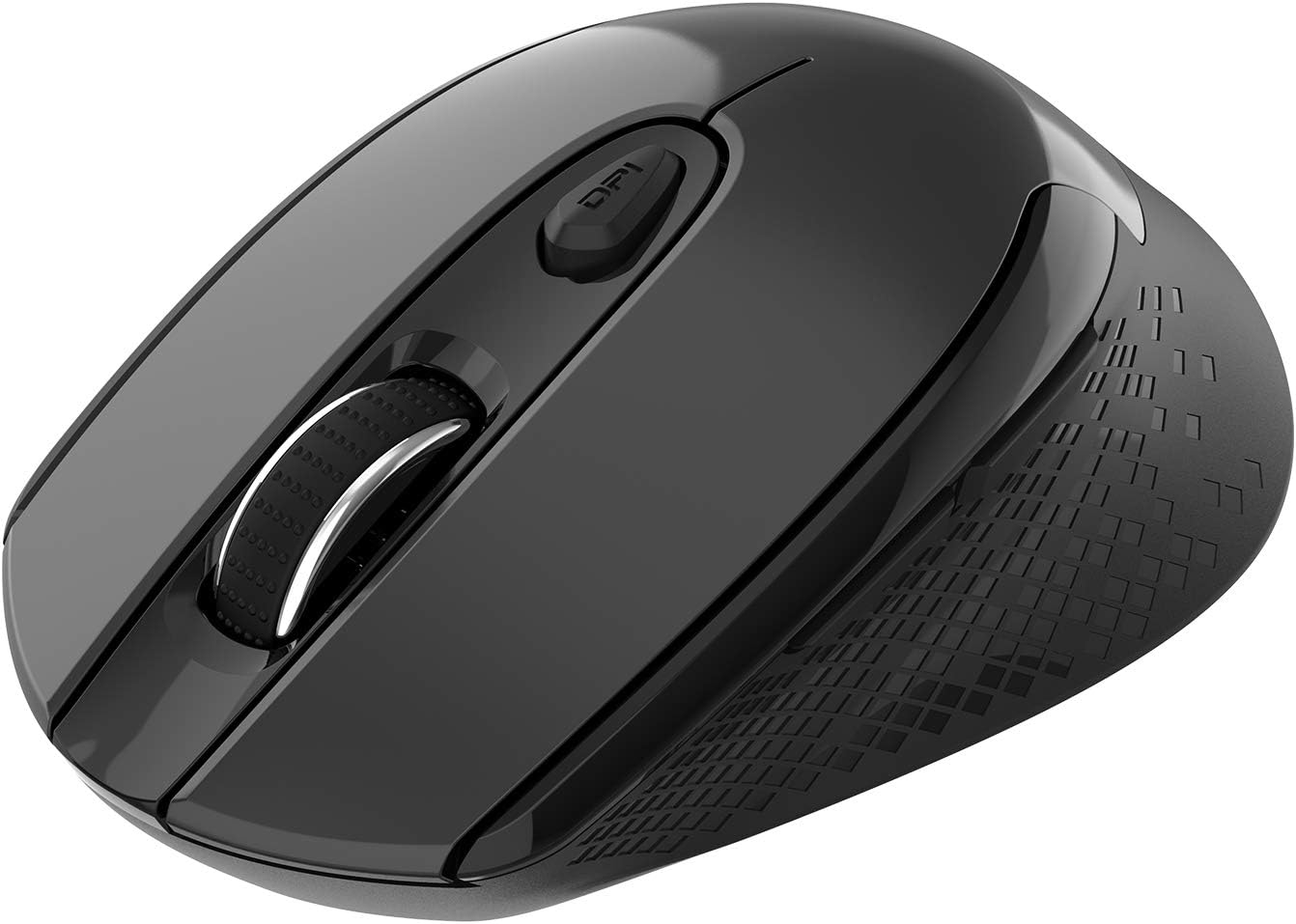
Imazh: Nga lart poshtë view of the Cimetech Wireless Ergonomic Optical Mouse.

Image: The mouse connected via 2.4G wireless technology, showing the USB receiver plugged into a laptop.
Përmbajtja e paketës
Verifikoni që të gjitha sendet janë të pranishme në paketim:
- 1 x Cimetech Cordless Mouse
- 1 x USB Receiver (stored in the battery compartment of the mouse)
- 1 x Manuali i Përdoruesit
Konfigurimi
1. Instalimi i baterisë
- Gjeni kapakun e ndarjes së baterisë në pjesën e poshtme të mausit.
- Rrëshqisni ose ngrini butësisht kapakun për të hapur ndarjen.
- Insert one AA battery (not included) into the compartment, ensuring correct polarity (+/-).
- Zëvendësoni kapakun e ndarjes së baterisë.
2. Lidhja e marrësit USB
- Open the battery compartment cover and carefully remove the USB receiver.
- Plug the USB receiver into an available USB port on your computer (laptop, desktop, Mac, or PC).
- Mausi duhet të lidhet automatikisht me pajisjen tuaj. Zakonisht nuk kërkohen drajverë shtesë.

Image: Visual guide for installing the AA battery and connecting the USB receiver.
Udhëzimet e funksionimit
Funksionet e butonit
The Cimetech Wireless Mouse features 6 buttons for enhanced functionality:
- Butoni i klikimit të majtë: Funksioni standard i klikimit parësor.
- Butoni i klikimit me të djathtën: Funksioni standard i klikimit dytësor.
- Rrota e lëvizjes: Për lëvizje vertikale. Mund të shtypet edhe për funksionalitetin e klikimit të mesëm.
- Butoni i ndërrimit të DPI-së: Rregullon ndjeshmërinë e mausit (DPI) të mausit.
- Butoni përpara: Navigon përpara brenda web shfletuesit ose file eksplorues.
- Butoni prapa: Navigon prapa brenda web shfletuesit ose file eksplorues.

Image: Labeled diagram showing the location of the Left Click, Right Click, Scroll Wheel, DPI Switch, Forward, and Backward buttons, along with mouse dimensions.
Rregullimi i DPI
The mouse offers three adjustable DPI (Dots Per Inch) levels to control cursor speed and sensitivity. To change the DPI setting:
- Shtypni Butoni DPI once: DPI is set to 800.
- Shtypni Butoni DPI a second time: DPI is set to 1200 (default setting).
- Shtypni Butoni DPI a third time: DPI is set to 1600.
The mouse retains the last selected DPI setting even after being turned off and on.
Intelligent Power-Saving Modes
The mouse is designed with three power-saving stages to conserve battery life:
- Stage 1 (Standby): Enters after 3 seconds of inactivity. Move the mouse to wake it up.
- Stage 2 (Auto Shut-off): Enters after 60 seconds of inactivity. Move the mouse to wake it up.
- Stage 3 (Deep Sleep): Enters after 15 minutes of inactivity. Move the mouse to wake it up.
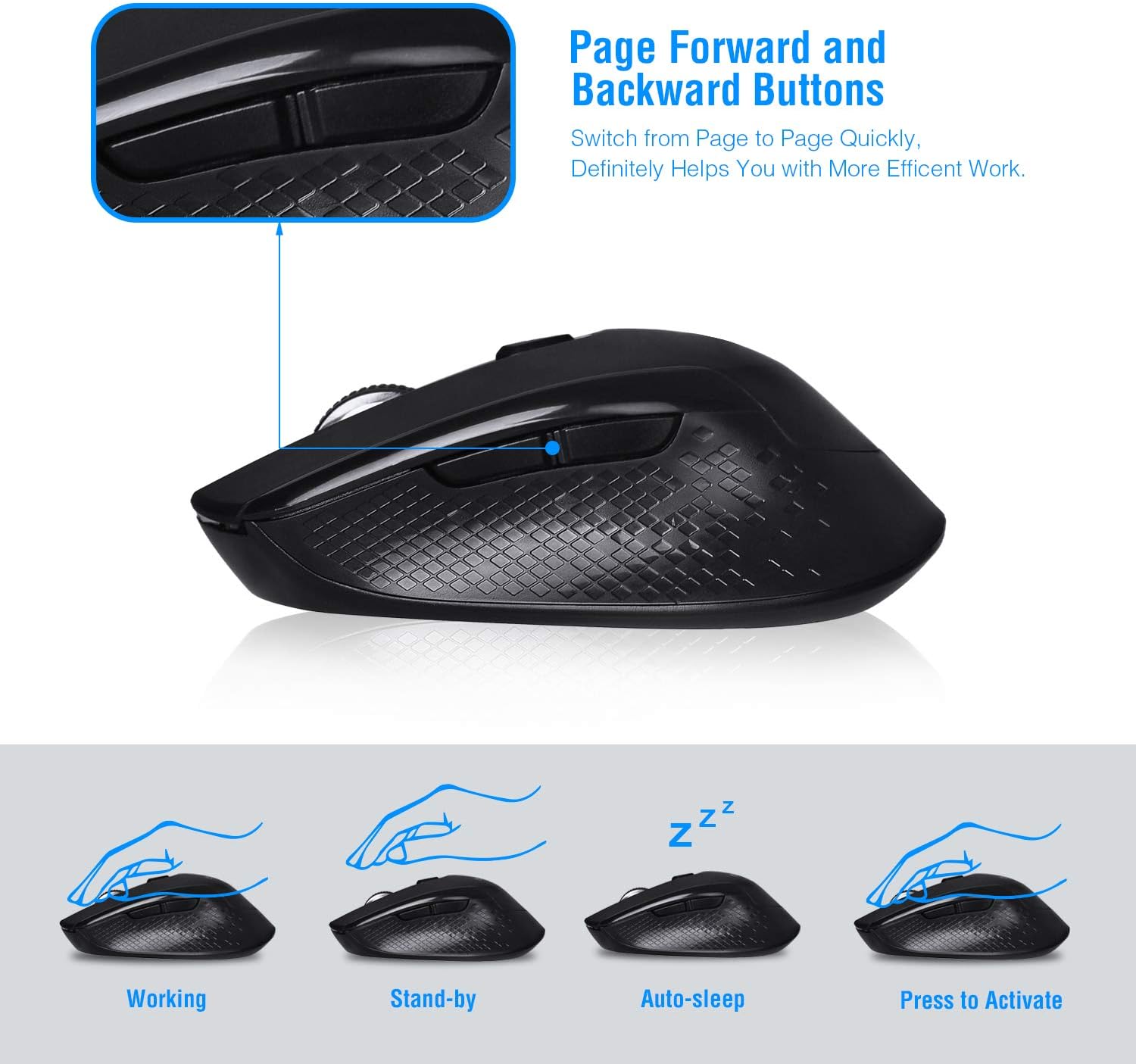
Image: Visual representation of the mouse's working, standby, auto-sleep, and activation states.
Mirëmbajtja
- Mbajeni miun të pastër duke e fshirë me një leckë të butë dhe të thatë.
- Avoid exposing the mouse to extreme temperatures, direct sunlight, or liquids.
- When not in use for extended periods, consider removing the battery to prevent leakage.
- Store the USB receiver inside the mouse's battery compartment when traveling to prevent loss.
Zgjidhja e problemeve
| Problem | Zgjidhje |
|---|---|
| Miu nuk përgjigjet |
|
| Lëvizja e kursorit është e çrregullt ose e pasaktë |
|
| Butonat përpara/prapa nuk funksionojnë |
|
Specifikimet
| Numri i modelit | CQ-TM004 |
| Nivelet e DPI | 800 / 1200 (e parazgjedhur) / 1600 |
| Norma e votimit | 125 Hz |
| Gama e funksionimit | Deri në 50 këmbë (afërsisht 15 metra) |
| Lidhshmëria | 2.4GHz Wireless via USB Receiver |
| Lloji i baterisë | 1 x bateri AA (nuk përfshihet) |
| Përputhshmëria | Windows 2000/ME/XP/7/8/10, VISTA, Mac OS |
| Dimensionet e produktit | 4.13 x 2.64 x 0.1 inç (10.5 x 6.7 x 0.25 cm) |
| Pesha e artikullit | 2.82 ons (80 gram) |
Përputhshmëria
The Cimetech Wireless Mouse is compatible with a wide range of operating systems, including:
- Windows 2000
- Windows ME
- Windows XP
- Windows Vista
- Windows 7
- Windows 8
- Windows 10
- Mac OS
It is suitable for use with desktops, laptops, PCs, and MacBooks.
Garancia dhe Mbështetja
Specific warranty information is not provided in this manual. For warranty details, technical support, or further assistance, please refer to the official Cimetech webfaqja e internetit ose kontaktoni direkt shërbimin e tyre ndaj klientit.
You can often find support resources, FAQs, and contact information on the manufacturer's product support page.