
Hikity 9-inch Android 15 Car Radio User Manual
Model: B0CQLNWC4S for Toyota Prius C (2012-2014)
1. Produkti i Mbaruarview
This Hikity car radio is an advanced infotainment system designed for Toyota Prius C models from 2012 to 2014. It features a 9-inch Incell touchscreen, Android 15 operating system, 4GB RAM, and 128GB ROM, providing a smooth and responsive user experience. Key functionalities include wireless CarPlay and Android Auto, Bluetooth 5.0, FM/RDS radio, GPS navigation, Wi-Fi connectivity, steering wheel control support, and compatibility with an AHD backup camera.

Image 1.1: The Hikity 9-inch car radio seamlessly integrated into a Toyota Prius C dashboard, displaying navigation and media playback.
2. Çfarë ka në kuti
Ju lutemi verifikoni që të gjithë përbërësit janë të pranishëm përpara se të filloni instalimin:
- Android Stereo for Toyota Prius C
- Backup Camera/CAM-IN Cable
- Power Cable/RCA Cable
- Antenë GPS
- Mikrofoni
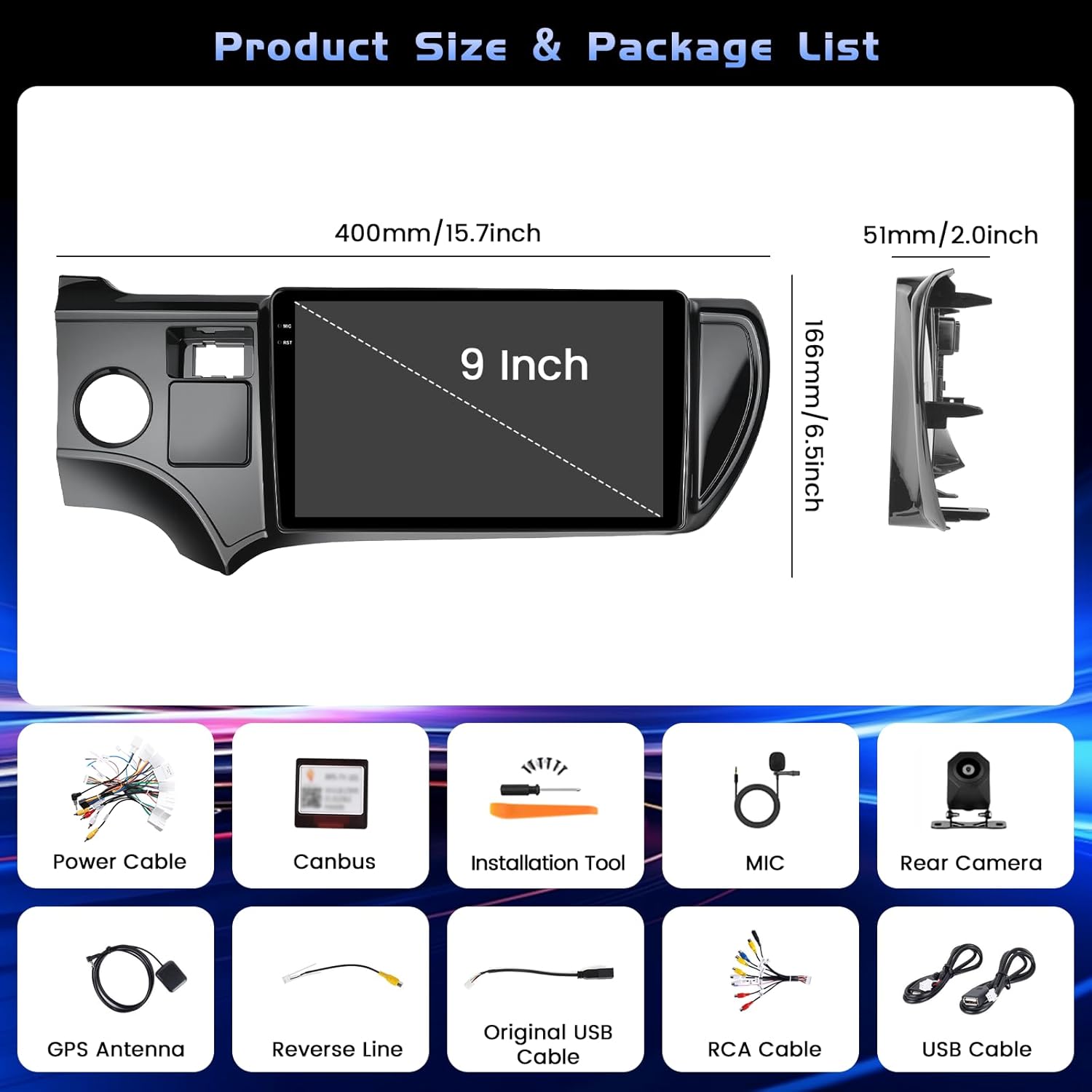
Image 2.1: All included components of the Hikity car radio system.
3. Konfigurimi dhe instalimi
Professional installation is recommended for optimal performance and to avoid damage to your vehicle or the unit. Ensure the vehicle's power is disconnected before starting installation.
3.1 Lidhjet e instalimeve elektrike
Carefully connect all cables according to the provided wiring diagram. Pay close attention to the power and ground connections to prevent electrical issues. The backup camera requires specific wiring to function correctly.
Video 3.1: Detailed instructions on how to connect the backup camera to the car radio system.
For the backup camera, connect the 'BACK' line from the main harness to the positive pole of your car's reversing light. Connect the camera's power cable to the reversing light's positive and negative poles. The video signal cable from the camera connects to the 'CAM-IN' port on the head unit.

Image 3.2: Wiring diagram for the backup camera connection.
3.2 Ndezja fillestare
After all connections are secure, reconnect the vehicle's power. The unit should power on automatically. Follow any on-screen prompts for initial setup, such as language selection and time zone.
4. Udhëzimet e funksionimit
4.1 Basic UI Navigation
The system features an intuitive touchscreen interface. Swipe left or right to navigate between home screens and access various applications. The top bar displays status icons for Wi-Fi, Bluetooth, GPS, and time.

Imazhi 4.1: Mbiview of the user interface with various app icons and customizable themes.
4.2 Lidhja Bluetooth
To connect your smartphone via Bluetooth for hands-free calls and audio streaming:
- Go to the 'Settings' menu on the car radio.
- Select 'Bluetooth' and ensure it is enabled.
- Në telefonin tuaj inteligjent, aktivizoni Bluetooth dhe kërkoni për pajisje të disponueshme.
- Select the car radio's Bluetooth name (e.g., 'BLINK_UNW2652') from your phone's list.
- Konfirmoni kërkesën për çiftim në të dyja pajisjet.

Image 4.2: Bluetooth dialing screen and connection status.
4.3 CarPlay pa tel dhe Android Auto
This unit supports both wireless CarPlay and Android Auto for seamless smartphone integration. Connect your mobile phone to the car infotainment system via Bluetooth first, then launch the 'S-Play' application on the car radio to initiate the connection.
Video 4.3: Guide on how to use CarPlay with the car radio.

Image 4.4: Wireless CarPlay and Android Auto interface.
4.4 Navigimi GPS
The unit features a dual navigation system supporting both online and offline maps. Connect to Wi-Fi to download offline maps or use online navigation for real-time traffic updates.

Image 4.5: GPS navigation interface with online and offline map options.
4.5 Kontroll i Timonit (SWC)
The car radio supports your vehicle's original steering wheel controls. To configure them:
- Connect the SWC wires (KEY1/KEY2) from the car radio harness to the corresponding wires in your vehicle's wiring.
- Access the 'Steering Wheel Key Learning' function in the car radio's settings (usually under 'Factory Setup' with password 1234).
- Ndiqni udhëzimet në ekran për të caktuar funksione për secilin buton në timon.

Image 4.6: Steering Wheel Control learning interface.
4.6 Funksionaliteti i Ekranit të Ndarë
The unit supports split-screen mode, allowing you to run two applications simultaneously. This feature can be enabled or disabled in the 'Factory Setup' settings (password 1234) under 'Split screen function'. Once enabled, you can drag compatible apps to either side of the screen.
Radio 4.7 FM/RDS
Access the FM/RDS application to listen to radio stations. The RDS (Radio Data System) feature displays station information where available.
5. Mirëmbajtja
Për të siguruar jetëgjatësinë dhe performancën optimale të radios së makinës suaj, ndiqni këto udhëzime për mirëmbajtje:
- Pastrimi i ekranit: Use a soft, lint-free cloth to gently wipe the touchscreen. Avoid abrasive cleaners or harsh chemicals that could damage the screen coating.
- Përditësimet e softuerit: Periodically check for software updates through the system's settings to ensure you have the latest features and bug fixes.
- Kushtet e mjedisit: Shmangni ekspozimin e pajisjes ndaj temperaturave ekstreme, rrezeve të diellit direkte për periudha të zgjatura ose lagështirës së tepërt.
- Integriteti i kabllove: Regularly inspect all visible cables for any signs of wear or damage.
6. Troubleshooting
If you encounter issues with your car radio, refer to the following common solutions:
- Pa fuqi: Check all power connections. Ensure the vehicle's fuse for the radio is intact.
- Ekrani bosh: Perform a soft reset by pressing the RST button (if available) or disconnecting and reconnecting the vehicle's battery for a few minutes.
- Backup Camera Not Working: Verify all camera wiring, especially the 'BACK' trigger wire and power connections. Ensure the correct camera input type (AHD, CVBS-N, etc.) is selected in 'Factory Setup' > 'Backcar Source Settings'.
- Kontrollet e timonit nuk përgjigjen: Re-perform the 'Steering Wheel Key Learning' procedure as described in Section 4.5. Ensure the SWC wires are correctly connected.
- Probleme me lidhjen Bluetooth/CarPlay/Android Auto: Ensure Bluetooth is enabled on both devices. Forget the device on both the phone and car radio, then attempt to pair again. For CarPlay/Android Auto, ensure the 'S-Play' app is running and your phone is compatible.
- Nuk ka zë: Check speaker connections and ensure the volume is not muted or set too low. Verify equalizer settings.
7. Specifikimet
| Veçori | Detaj |
|---|---|
| Markë | Hikity |
| Emri i modelit | Radio makinash Android |
| Sistemi Operativ | Android 15 |
| Kujtesa | 4 GB RAM + 128 GB ROM |
| Madhësia e ekranit | 9 inç |
| Lloji i ekranit | Incell Full Touchscreen LCD |
| Rezolucioni | 1280*720 |
| Lidhshmëria | Bluetooth 5.0, USB, Wi-Fi (5G), Wireless CarPlay, Android Auto |
| Navigimi | Dual GPS (Online and Offline Maps) |
| Modaliteti i daljes audio | Stereo (32-EQ) |
| Automjete të përputhshme | Toyota Prius C 2012-2014 |
| Dimensionet e artikullit (L x P x H) | 15.94" x 10.24" x 2.36" |
| Pesha e artikullit | 1 kilogram |

Image 7.1: Details of the Incell Full Lamination Screen technology.
8. Garancia dhe Mbështetja
8.1 Informacioni i garancisë
This Hikity car radio comes with a 1 vit garanci nga data e blerjes. Garancia mbulon defektet e prodhimit dhe keqfunksionimet nën përdorim normal. Ju lutemi ruani provën e blerjes për kërkesat e garancisë.
8.2 Mbështetja e klientit
For technical assistance, troubleshooting, or warranty inquiries, please contact Hikity customer support through the retailer where the product was purchased. You may also find additional support resources on the official Hikity webfaqe.