
1. Hyrje
This manual provides detailed instructions for the installation, operation, and maintenance of your WONLINK 1200Mbps Dual Band WiFi Extender. This device is designed to expand your existing WiFi network coverage, eliminate dead zones, and provide stable, high-speed internet access throughout your home or office.
2. Informacion mbi sigurinë
- Ensure the device is plugged into a standard electrical outlet with the correct voltage.
- Mos e ekspozoni pajisjen ndaj ujit, lagështirës ose temperaturave ekstreme.
- Shmangni vendosjen e pajisjes pranë burimeve të nxehtësisë ose në rrezet e diellit direkte.
- Do not attempt to open or repair the device yourself. Contact qualified personnel for service.
- Mbajeni pajisjen larg fëmijëve dhe kafshëve shtëpiake.
3. Përmbajtja e paketës
Ju lutemi verifikoni që të gjitha artikujt janë të pranishëm në paketën tuaj:
- 1 x WONLINK 1200Mbps WiFi Extender
- 1 x Operation Instructions (this manual)
- 1 x Kabllo Rrjeti RJ-45
4. Produkti i Mbaruarview
The WONLINK WiFi Extender features a compact design with four external antennas for enhanced signal coverage. It supports dual-band WiFi (2.4GHz and 5.8GHz) and includes an Ethernet port for wired connections.

Figura 4.1: Përpara view of the WONLINK WiFi Extender, showing LED indicators and WPS button.
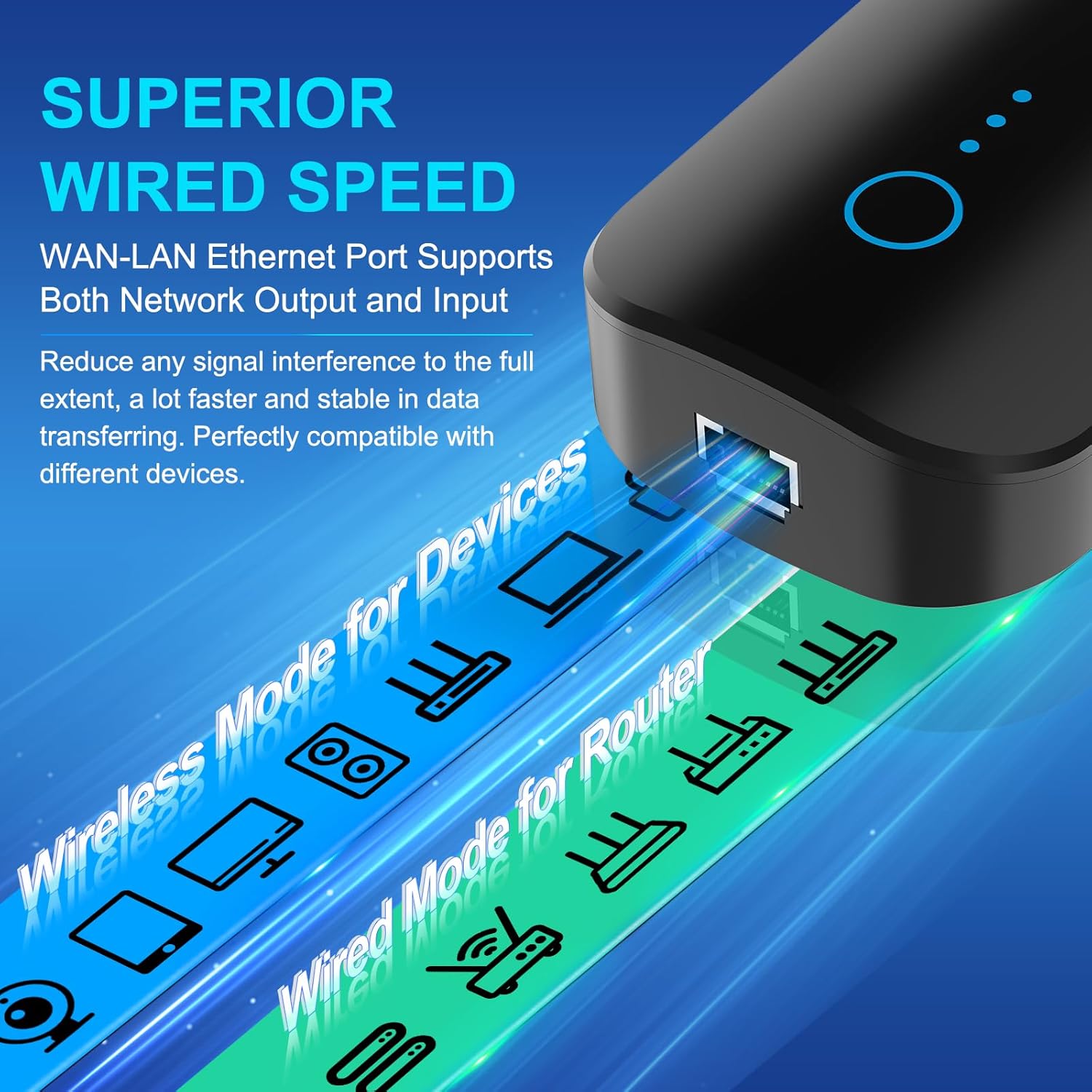
Figura 4.2: Anash view highlighting the WAN/LAN Ethernet port for wired connections.
Treguesit LED:
- Fuqia LED: Tregon statusin e fuqisë.
- LED i WiFi-së: Indicates WiFi activity.
- LED i sinjalit: Displays the strength of the received router signal.
Butonat dhe Portet:
- Butoni WPS/Rivendosje: Used for quick setup (WPS) or factory reset.
- WAN/LAN Ethernet Port: Supports both network output and input for wired devices.
5. Konfigurimi dhe instalimi
The WONLINK WiFi Extender can be set up using two methods: WPS (Wi-Fi Protected Setup) or via a web shfletuesi.
5.1. WPS Setup (Recommended for quick setup)
- Plug the WiFi Extender into an electrical outlet near your main router. Wait for the Power LED to light up.
- Shtypni butonin WPS në routerin tuaj kryesor.
- Within 2 minutes, press the WPS button on the WONLINK WiFi Extender. The Signal LED on the extender will blink during the connection process.
- Once connected, the Signal LED will turn solid, indicating a successful connection.
- Unplug the extender and relocate it to a suitable position between your router and the WiFi dead zone. Ensure the Signal LED indicates a good signal strength from your router.

Figura 5.1: Illustrates the WPS button on the extender and router for quick connection.
5.2. Web Konfigurimi i shfletuesit
- Plug the WiFi Extender into an electrical outlet. Wait for the Power LED to light up.
- On your computer or smartphone, connect to the extender's default WiFi network (e.g., "WONLINK-XXXX-2G" or "WONLINK-XXXX-5G"). No password is required initially.
- Hap a web shfletuesin dhe futni adresën IP të paracaktuar 192.168.10.1 në shiritin e adresave.
- Follow the on-screen instructions to log in (default username/password might be "admin/admin" or specified in the quick start guide).
- Select "Repeater Mode" or "AP Mode" based on your requirements.
- Scan for available WiFi networks and select your home network (SSID).
- Enter your home WiFi network's password.
- Confirm settings and restart the extender if prompted.
- Once configured, the extender will broadcast new WiFi networks (e.g., "YourNetworkName-EXT" or similar). Connect your devices to these new networks.

Figura 5.2: Step-by-step visual guide for web konfigurimi i shfletuesit.
6. Modalitetet e operimit
The WONLINK WiFi Extender supports multiple operating modes to suit various networking needs:
- Modaliteti i përsëritësit: Extends the coverage of an existing wireless network. This is the most common mode for eliminating WiFi dead zones.
- Modaliteti i pikës së hyrjes (AP): Converts a wired network connection into a wireless access point. Ideal for creating a new WiFi network from an Ethernet source.
- Modaliteti i routerit: Functions as a basic router, creating a private network from a modem connection.

Figura 6.1: Visual representation of Repeater, Router, and AP modes.
7. Mirëmbajtja
- Pastrim i rregullt: Gently wipe the device with a dry, soft cloth to remove dust. Do not use liquid cleaners.
- Përditësimet e firmuerit: Kontrolloni të prodhuesit webkontrolloni faqen periodikisht për përditësime të firmware-it për të siguruar performancë dhe siguri optimale.
- Vendosja optimale: Ensure the extender is placed in an open area, away from obstructions and other electronic devices that may cause interference.
- Rinisja: If you experience network issues, try restarting the extender by unplugging it for 10 seconds and then plugging it back in.
8. Troubleshooting
Q1: The extender is not powering on.
A: Ensure the power outlet is functional and the extender is securely plugged in. Try a different outlet.
Q2: Cannot connect to the extender's default WiFi network during setup.
A: Make sure the extender is powered on and you are within its range. If you have previously configured it, perform a factory reset by pressing and holding the WPS/Reset button for 5-8 seconds until the LEDs flash.
Q3: The extender is connected to the router, but there is no internet access.
A:
- Verifikoni që routeri juaj kryesor ka qasje në internet.
- Ensure the extender is receiving a strong signal from the router (check the Signal LED). Relocate the extender closer to the router if the signal is weak.
- Reconfigure the extender, ensuring you enter the correct password for your main WiFi network.
Q4: The extended WiFi network is slow or unstable.
A:
- Relocate the extender to an optimal position, ideally halfway between your router and the desired coverage area, where it can receive a strong signal from the router.
- Minimize interference by keeping the extender away from large metal objects, microwaves, cordless phones, and Bluetooth devices.
- Sigurohuni që firmware-i i routerit tuaj të jetë i azhurnuar.
- Consider using the 5GHz band for devices that support it, as it generally offers higher speeds and less interference, though with shorter range.
9. Specifikimet
| Veçori | Përshkrimi |
|---|---|
| Markë | FITUAR |
| Standardi i komunikimit pa tel | 802.11a/b/g/n/ac |
| Shkalla e transferimit të të dhënave | 1200 Megabit për sekondë (Mbps) |
| Klasa e brezit të frekuencës | Dy-Band (2.4GHz dhe 5.8GHz) |
| Karakteristika të veçanta | 360 Degree Coverage, Access Point Mode, Repeater Mode, Router Mode |
| Porta Ethernet | 10/100Mbps RJ45 WAN/LAN Port |
| Antenat | 4 Antena të Jashtme me Përfitim të Lartë |
| Siguria | WPA-PSK/WPA2-PSK/WPA/WPA2 |
| Pesha e artikullit | 7.4 ons |
| Dimensionet e paketës | 8.15 x 3.86 x 3.03 inç |
10. Garancia dhe Mbështetja
For warranty information and technical support, please refer to the official WONLINK webnë faqen e internetit ose kontaktoni direkt shërbimin e tyre ndaj klientit. Ruajeni faturën e blerjes për kërkesat e garancisë.
Webfaqe: Visit the WONLINK Store on Amazon