
Hyrje
This manual provides comprehensive instructions for the setup, operation, maintenance, and troubleshooting of your Avision AD340G Compact High Speed Duplex Document Scanner. Please read this manual thoroughly before using the scanner to ensure proper and safe operation.
Informacioni i Sigurisë
Ndiqni masat paraprake të sigurisë për të parandaluar lëndimet dhe dëmtimin e skanerit:
- Përdorni vetëm adaptorin e energjisë që vjen me skanerin.
- Mos e ekspozoni skanerin ndaj ujit ose lagështirës së tepërt.
- Place the scanner on a stable, level surface.
- Keep the scanner away from direct sunlight and heat sources.
- Unplug the scanner before cleaning or if it will not be used for an extended period.
Përmbajtja e paketës
Verifikoni që të gjitha sendet janë të pranishme në paketim:
- Avision AD340G Document Scanner
- Përshtatës i energjisë
- Kabllo USB
- Udhëzues për fillimin e shpejtë
- Software CD (or download instructions)
Produkti Mbiview
Familiarize yourself with the main components of the Avision AD340G scanner.
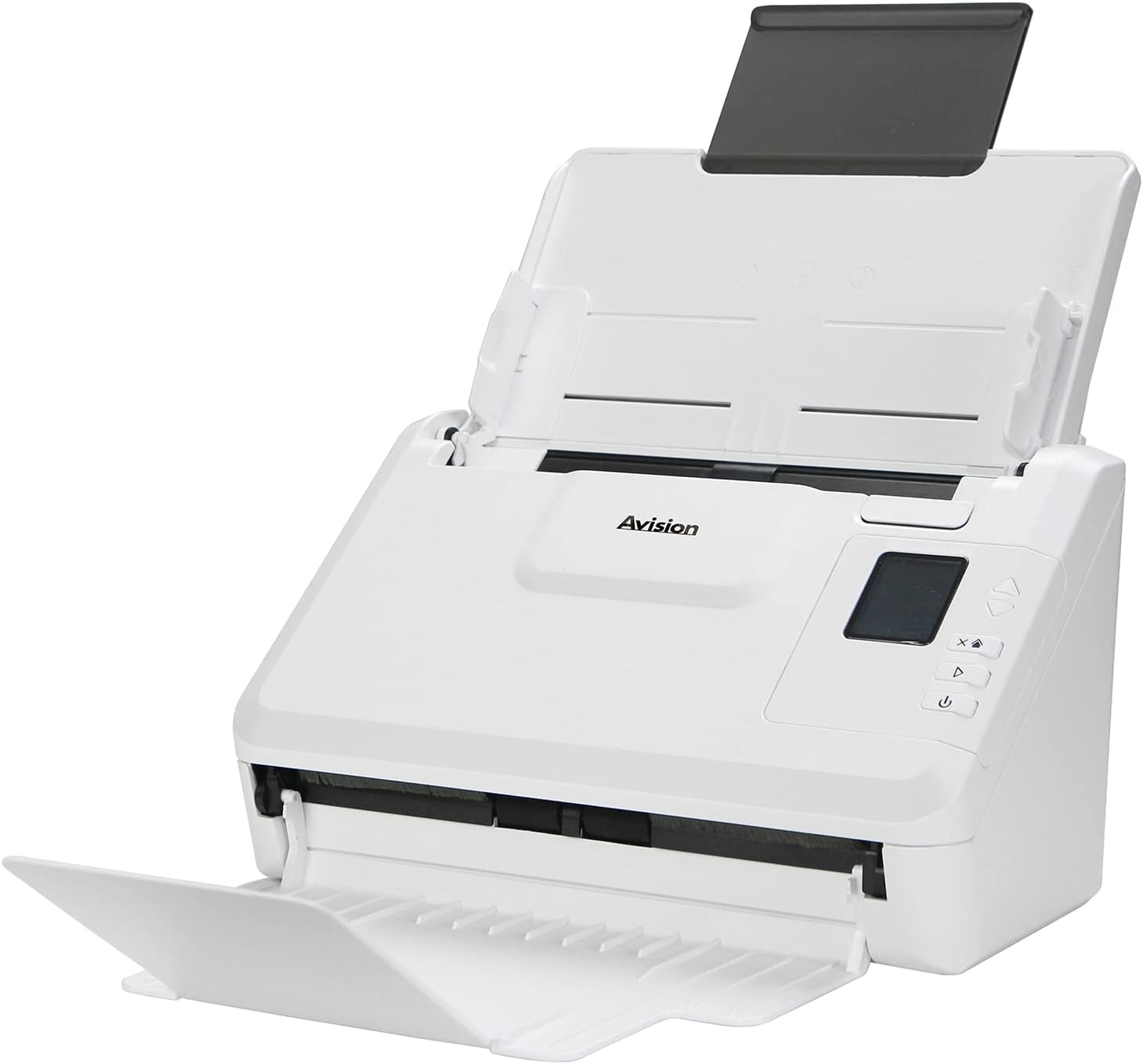
Imazhi: The Avision AD340G scanner shown with its input and output trays extended, ready for document feeding. This view highlights the compact design and accessible paper path.
- Document Feeder Tray: Where documents are loaded for scanning.
- Tabaka e daljes: Where scanned documents are ejected.
- Paneli i kontrollit: Buttons and display for scanner operation.
- Porta USB: Për t'u lidhur me një kompjuter.
- Porti i energjisë: Për lidhjen e përshtatësit të energjisë.
Konfigurimi
1. Konfigurimi fizik
- Shpaketojeni skanerin: Hiqni me kujdes skanerin dhe të gjitha aksesorët nga paketimi.
- Vendosni skanerin: Position the scanner on a flat, stable surface with adequate space for the input and output trays.
- Lidhni fuqinë:
- Connect the power adapter to the scanner's power port.
- Futni përshtatësin e energjisë në një prizë elektrike.
- Lidhu me kompjuterin:
- Connect one end of the USB cable to the scanner's USB port.
- Lidheni anën tjetër të kabllit USB me një portë USB të disponueshme në kompjuterin tuaj.
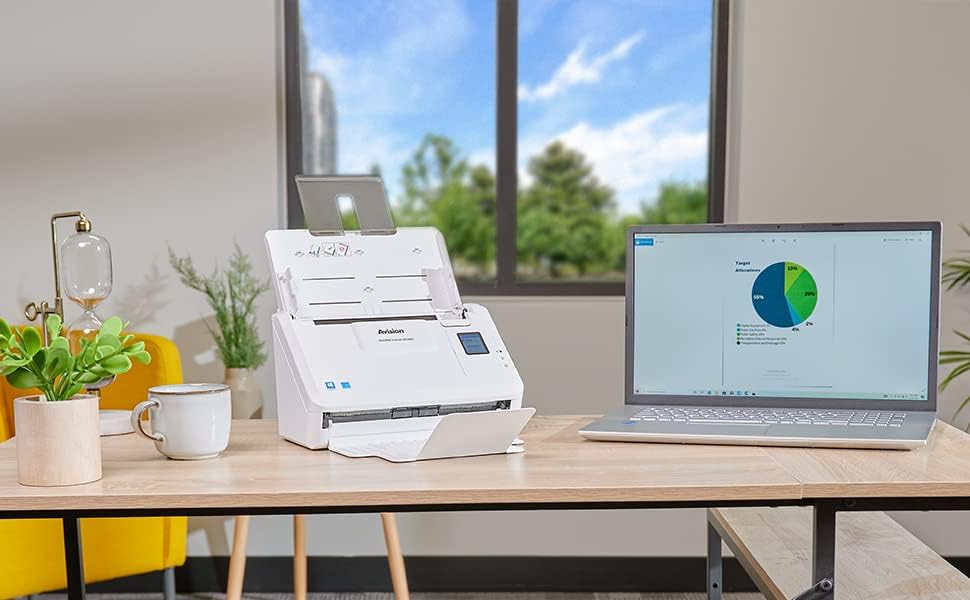
Imazhi: The Avision AD340G scanner set up on a desk next to a laptop, illustrating a typical connected environment. This shows the scanner's compact footprint when in use.
2. Instalimi i softuerit
Install the necessary drivers and scanning software from the provided CD or by downloading them from the official Avision webfaqe.
- Insert the software CD into your computer's CD/DVD drive, or navigate to the Avision support website to download the latest drivers and utilities for the AD340G model.
- Follow the on-screen instructions to complete the installation. This typically includes installing the TWAIN/ISIS drivers and the Avision scanning utility software.
- Rinisni kompjuterin tuaj nëse ju kërkohet.
Funksionimi i skanerit
1. Ngarkimi i Dokumenteve
- Open the document feeder tray and extend the output tray.
- Rregulloni udhëzuesit e letrës që të përputhen me gjerësinë e dokumenteve tuaja.
- Place the documents face-down in the input tray, ensuring they are neatly stacked and aligned. The scanner supports up to 50 sheets.

Imazhi: A hand carefully placing a stack of documents into the input tray of the Avision AD340G scanner, demonstrating the correct loading procedure.
2. Procedura e skanimit
- Ndizni skanerin duke shtypur butonin e energjisë.
- Launch the Avision scanning software on your computer.
- Zgjidhni profesionistin e skanimit që dëshironifile (e.g., color, grayscale, black & white, resolution). The AD340G supports duplex scanning (both sides simultaneously).
- Click the "Scan" button in the software or press the scan button on the scanner's control panel.
- The scanner will feed and process the documents. Once scanning is complete, the images will appear in the software.
- Review the scanned images, make any necessary adjustments (e.g., rotate, crop), and save them to your desired location and format (e.g., PDF, JPEG, TIFF).
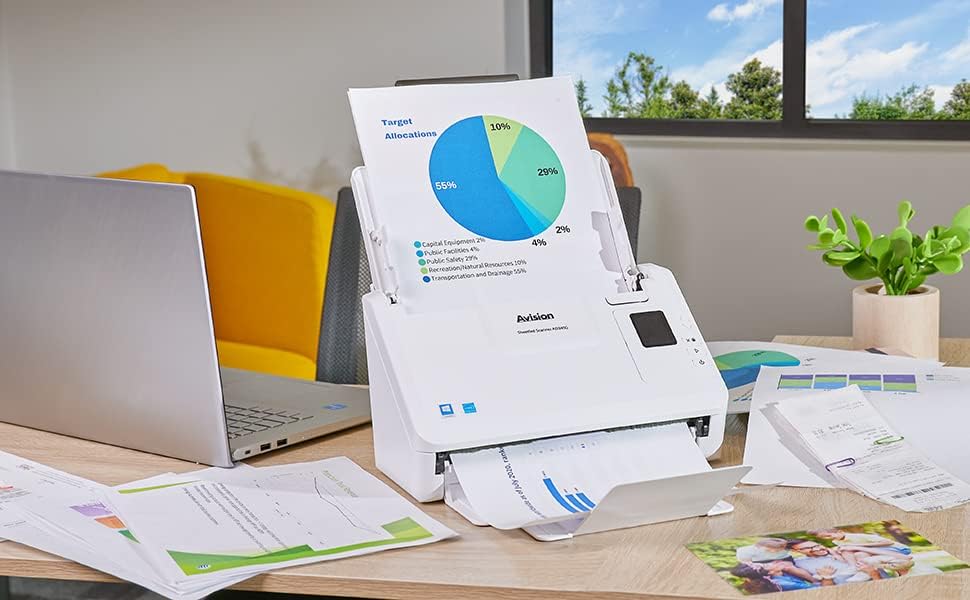
Imazhi: The Avision AD340G scanner in operation, feeding a document with a pie chart. This illustrates the scanner's ability to handle various document types efficiently.
Mirëmbajtja
Pastrimi i skanerit
Pastrimi i rregullt siguron performancë optimale dhe zgjat jetëgjatësinë e skanerit tuaj.
- Fikni dhe shkëputeni nga priza: Always turn off the scanner and disconnect the power adapter and USB cable before cleaning.
- Pastrimi i jashtëm: Wipe the exterior of the scanner with a soft, lint-free cloth lightly damptë larë me ujë ose me një pastrues të butë, jo-gërryes.
- Clean Interior (Rollers and Glass):
- Open the scanner cover to access the rollers and glass scanning surfaces.
- Gently wipe the feed rollers with a clean, lint-free cloth. If necessary, use a small amount of isopropyl alcohol on the cloth for stubborn residue.
- Clean the glass scanning strips with a soft cloth and glass cleaner (non-ammonia based).
- Lërini të gjithë përbërësit të thahen plotësisht përpara se të mbyllni kapakun dhe të rilidhni energjinë elektrike.
Zgjidhja e problemeve
| Problem | Shkaku i mundshëm | Zgjidhje |
|---|---|---|
| Skaneri nuk ndizet. | Kablloja e energjisë nuk është e lidhur; problem me prizën e energjisë. | Sigurohuni që kablloja e energjisë është e lidhur mirë. Provoni një prizë tjetër. |
| Documents jam frequently. | Misaligned paper guides; worn rollers; dirty rollers. | Adjust paper guides. Clean the feed rollers. If problem persists, rollers may need replacement. |
| Imazhet e skanuara janë të turbullta ose kanë vija. | Dirty scanning glass; incorrect resolution settings. | Clean the scanning glass. Adjust scanning resolution in the software. |
| Scanner not detected by computer. | USB cable disconnected; driver not installed or corrupted. | Check USB cable connection. Reinstall scanner drivers. Try a different USB port. |
Specifikimet
Key technical specifications for the Avision AD340G Document Scanner:
- Modeli: AD340G
- Lloji i skanerit: ADF Duplex Document Scanner
- Lidhshmëria: USB
- Rezolucioni: 600 dpi (Optical)
- Shpejtësia e skanimit: 40 ppm (pages per minute) / 80 ipm (images per minute)
- Thellësia e ngjyrës: 48 bits input / 24 bits output
- Kapaciteti standard i fletës: 50 fletë
- Teknologjia e sensorit optik: CIS (Sensori i Imazhit të Kontaktit)
- Dimensionet e produktit: 11 x 6.1 x 6.5 inç
- Pesha e artikullit: 8 paund
- Kërkesat minimale të sistemit: Windows XP/7/8/10
Garancia dhe Mbështetja
For warranty information, technical support, or service inquiries, please refer to the warranty card included with your product or visit the official Avision website. Contact information for customer support can typically be found on the manufacturer's webfaqe.
Avision Official Webfaqe: www.avision.com