Hyrje
The Contour Design SliderMouse Pro is an ergonomic office mouse designed to reduce strain on your wrists, shoulders, and forearms. Its unique centered and ambidextrous design promotes a natural posture, enhancing productivity and comfort during long workdays. This manual provides comprehensive instructions for setting up, operating, maintaining, and troubleshooting your SliderMouse Pro.
Çfarë ka në Kuti
- 1 x Contour SliderMouse Pro
- 1 x Wrist Rest
- Ngritësit e tastierës
- Dongle USB
- Zgjatësi USB
- Kabllo karikimi USB
- Manuali i Përdoruesit
Konfigurimi
Follow these steps to set up your Contour Design SliderMouse Pro:
- Lidhni marrësin USB: Insert the provided USB dongle into an available USB-A port on your computer. If your computer is far, use the USB extender to place the dongle closer to the mouse for optimal signal.
- Ndezja e mausit: Ensure the SliderMouse Pro is charged. The mouse offers dual connectivity via Bluetooth or the 2.4 GHz USB receiver. For 2.4 GHz mode, simply plug in the dongle. For Bluetooth, ensure your device's Bluetooth is enabled.
- Pozicionimi: Place the SliderMouse Pro directly in front of your keyboard. Adjust the keyboard risers if necessary to achieve a comfortable height and angle for your keyboard and mouse setup.
- Mbështetëse kyçi: Attach the magnetic wrist rest to the SliderMouse Pro. The slim vegan leather wrist rest is designed for comfort and can fit various desk spaces.
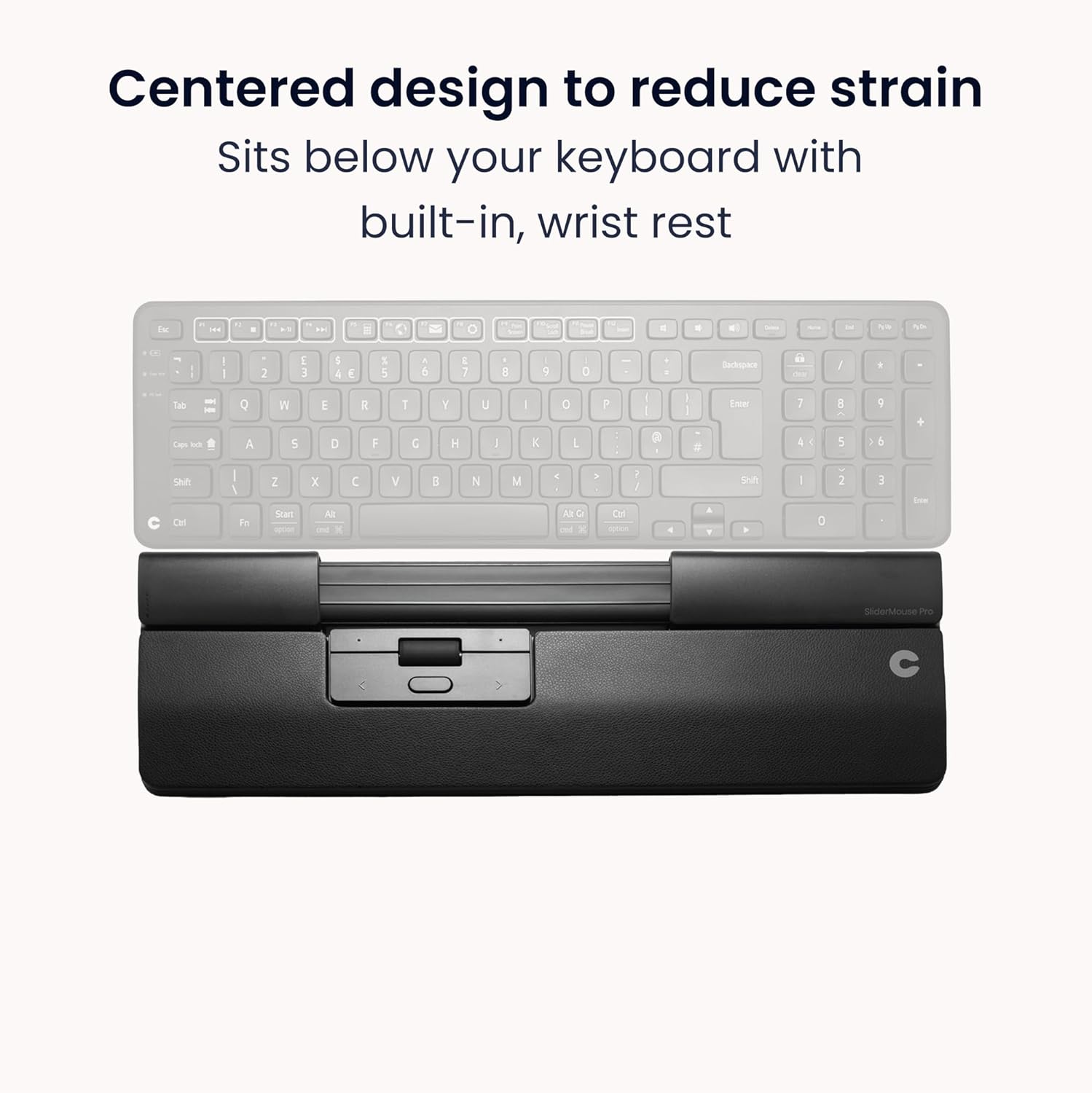
Image: The SliderMouse Pro positioned centrally below a keyboard, illustrating its ergonomic design to reduce strain by keeping hands within shoulder width.
Video: Official product video demonstrating the ergonomic design and features of the Contour SliderMouse Pro.
Udhëzimet e funksionimit
The SliderMouse Pro offers intuitive control for efficient workflow:
- Slider Bar Control: Use the clickable slider bar located below your space bar. Glide it left and right to move the cursor horizontally, and roll it forward and back to move the cursor vertically. Tap the bar for single or double clicks. This central control minimizes hand and wrist movement.
- Integrated Buttons: The mouse features 6 pre-programmed buttons: Left Click, Right Click, Double-click, Copy, Paste, and DPI adjustment. These buttons are strategically placed for easy access.
- Rrota e lëvizjes: A large, durable scroll wheel provides smooth scrolling for documents and web faqet.
- Customizing Buttons: Reprogram all buttons using the Contour driver software for Windows and macOS. This allows you to tailor the mouse functions to your specific workflow needs.
- Shpejtësia e kursorit (DPI): Adjust the cursor speed with 10 levels ranging from 600-2800 DPI. This allows for precise control for various tasks, from detailed graphic design to general browsing.
- Adjustable Click Resistance: Customize the click resistance and click sound to your preference for a personalized user experience.
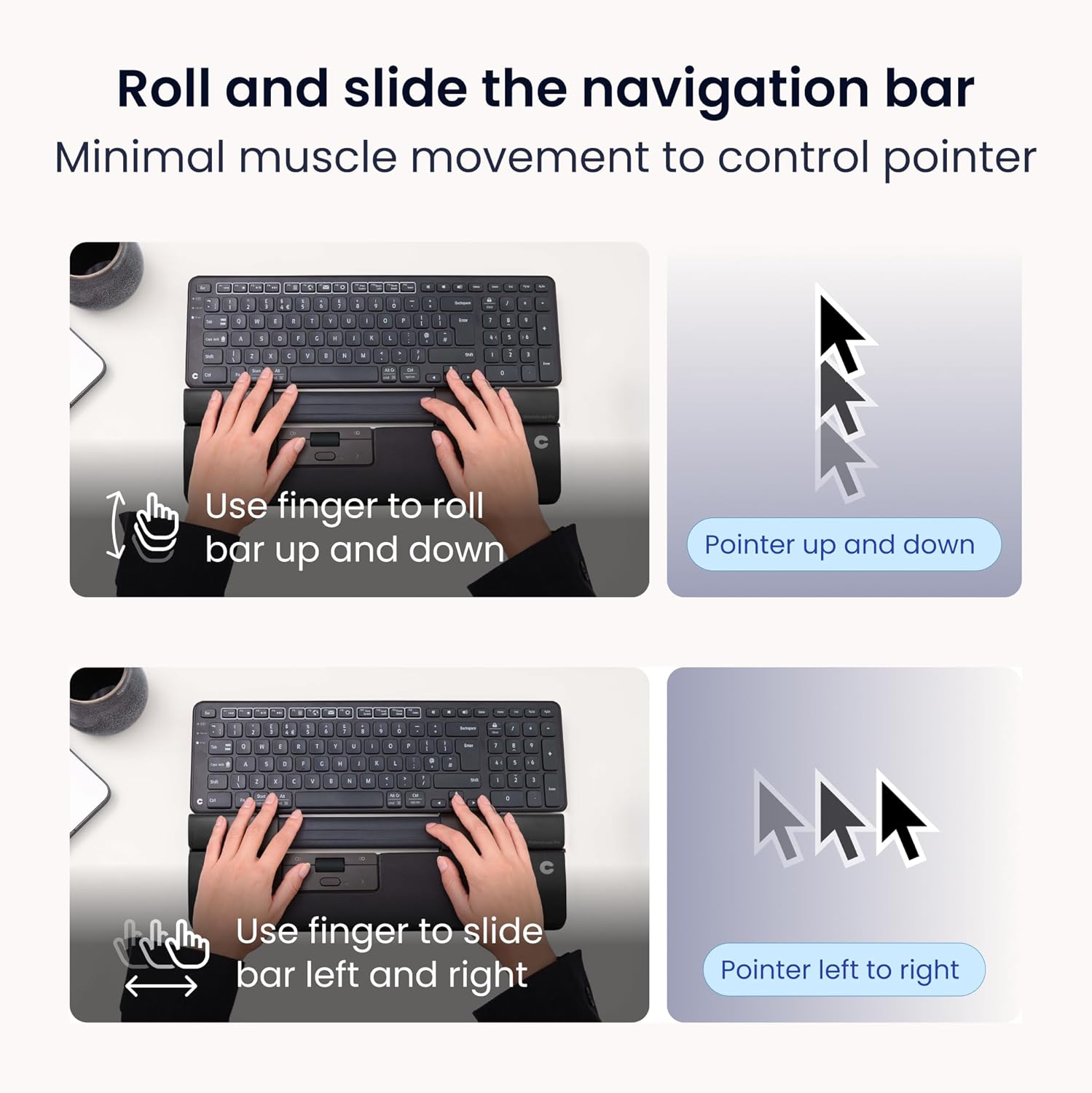
Image: Illustration of how to roll the navigation bar up and down for vertical pointer movement and slide it left and right for horizontal pointer movement.
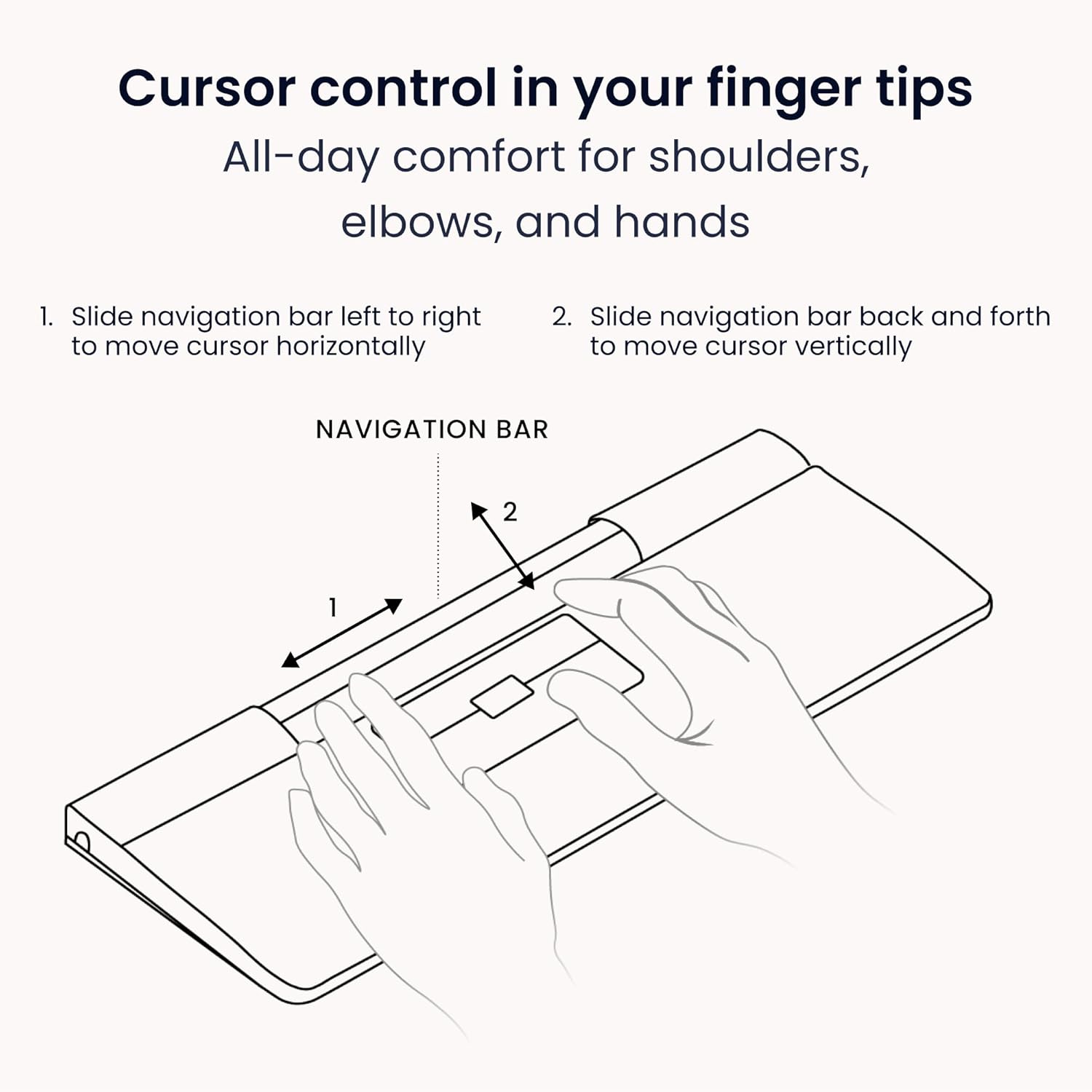
Image: A detailed diagram illustrating the two primary movements of the navigation bar for precise cursor control: sliding left to right for horizontal movement and sliding back and forth for vertical movement.

Imazh: Një pamje nga afër view of the SliderMouse Pro's control panel, highlighting the navigation bar and labeled buttons for Copy, Paste, Left Click, Right Click, Double Click, and the central Scroll Button, demonstrating the customizable workflow.
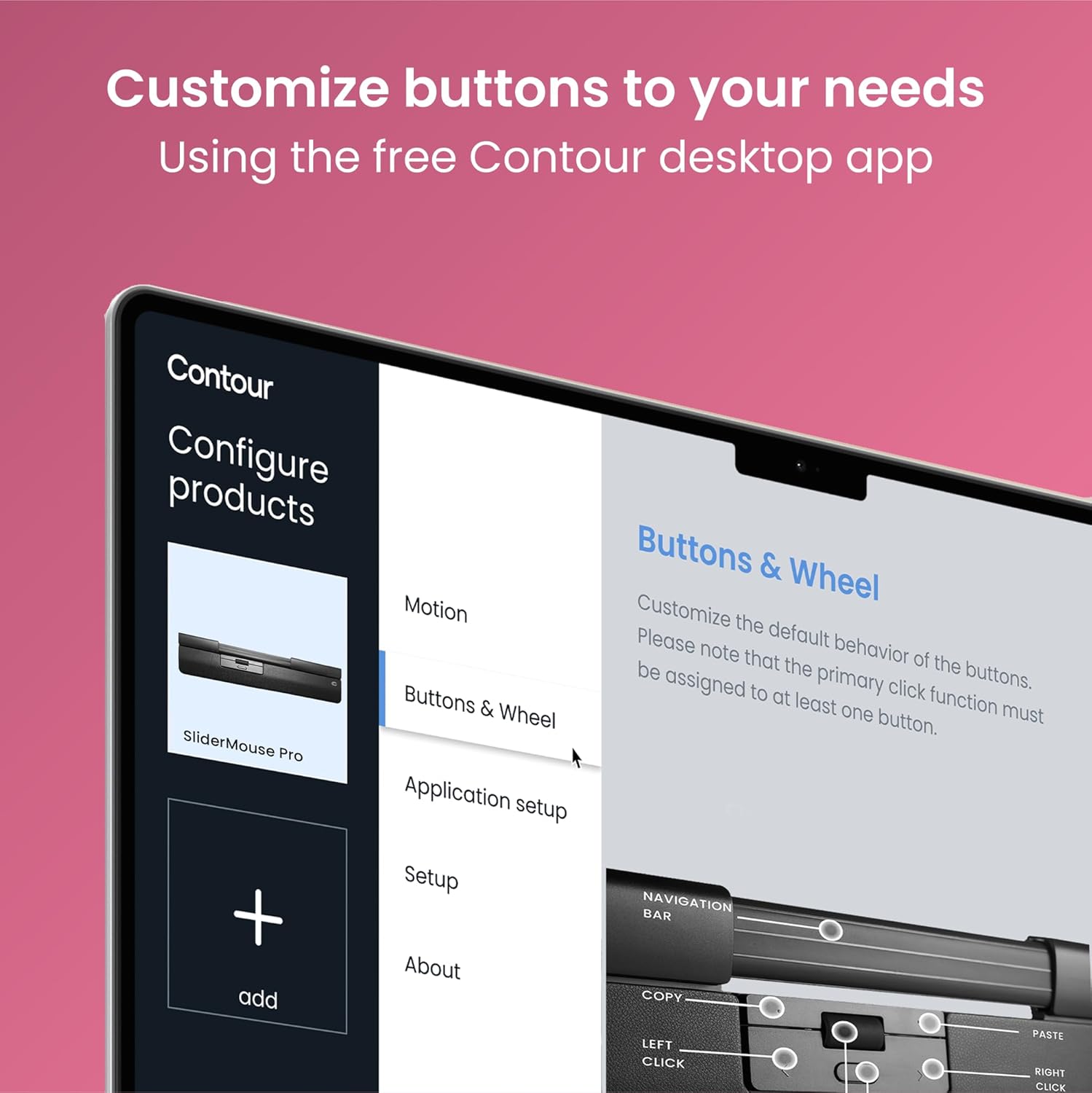
Image: A screenshot of the Contour desktop application interface, showing options to configure product settings, including motion, buttons & wheel, and application setup, allowing users to customize button behavior for the SliderMouse Pro.
Veçoritë
- Ergonomic & Ambidextrous Design: Centered placement below the keyboard reduces shoulder abduction and inward arm angles, minimizing strain on the neck, shoulders, forearms, and wrists.
- No Gripping, Less Fatigue: The slider bar control eliminates the need for gripping, reducing repetitive movements and fatigue.
- Customizable Workflow: 6 pre-programmed buttons and a scroll wheel, all reprogrammable via the Contour driver for Windows and macOS.
- Adjustable Cursor Speed: 10 cursor-speed levels (600-2800 DPI) for precision control.
- Lidhja e dyfishtë: Connects wirelessly via Bluetooth or a 2.4 GHz USB receiver.
- Plug & Play: No drivers required for basic functionality on Mac/Windows, with optional driver for advanced customization.
- Bateria e rikarikueshme: USB-C port for charging, offering 3-6 months of use per charge.

Image: A visual comparison showing the ergonomic advantage of the Contour SliderMouse Pro, which promotes a centered position and minimal movement, contrasted with a standard mouse that often leads to strained positions and maximum movement, contributing to muscle strain and pain.

Image: A user comfortably operating the SliderMouse Pro, emphasizing its suitability for long workdays by reducing strain during repetitive tasks. Text overlays highlight that 'Centered use improves posture' and provides 'All-day hand comfort'.
Mirëmbajtja
- Pastrimi: The vegan leather wrist rest is supportive and easy to clean. Use a soft, damp cloth to wipe down the surface of the mouse and wrist rest regularly. Avoid harsh chemicals.
- Ngarkimi: Recharge the SliderMouse Pro using the provided USB-C charging cable. The mouse offers 3-6 months of use between charges. Connect the USB-C end to the mouse and the USB-A end to a power source (e.g., computer USB port, wall adapter).
- Magazinimi: When not in use for extended periods, store the mouse in a clean, dry place.

Image: A user's hands are shown resting comfortably on the SliderMouse Pro's wrist support while typing on a keyboard, illustrating the supportive and easy-to-clean nature of the wrist rest.
Zgjidhja e problemeve
| Problem | Zgjidhje |
|---|---|
| Lëvizja e kursorit është e çrregullt ose e pasaktë. | Ensure the USB dongle is securely connected and close to the mouse. Check for obstructions. Adjust DPI settings to a lower sensitivity for more precise control. Clean the slider bar area for any debris. |
| Mausi nuk përgjigjet. | Check battery level and recharge if necessary. Ensure the mouse is powered on. Re-pair the mouse via Bluetooth or re-insert the USB dongle. Try a different USB port. |
| Buttons are not functioning as expected. | Verify that the Contour driver is installed and buttons are configured correctly. Reset button settings to default if custom settings are causing issues. |
| Wrist rest feels uncomfortable. | Ensure the wrist rest is securely attached. Adjust keyboard risers to find an optimal height for your wrists. Consider different wrist rest sizes if available. |
Specifikimet
- Dimensionet e produktit: 15.04 x 0.93 x 0.04 inç
- Pesha e artikullit: 1.37 ons
- Numri i modelit të artikullit: CDSMPRO10110
- Bateritë: 1 Bateri Jostandarde (e përfshirë)
- Prodhuesi: Contour Design Inc
- Teknologjia e lidhjes: Bluetooth, 2.4 GHz Wireless (USB Dongle)
- Karakteristikat e veçanta: 4 Way Scrolling, Ergonomic Design, Programmable Buttons, Soundless, Wireless
- Teknologjia e zbulimit të lëvizjes: Optike
- Nivelet e DPI: 10 levels (600-2800 DPI)
- Përputhshmëria: Windows, macOS, Linux (core functions)
Garancia dhe Mbështetja
For warranty information and technical support, please visit the official Contour Design support page:
You can also find patent information at: http://www.contourdesign.com/US/patents


