Hyrje
This manual provides detailed instructions for the TECKNET Wireless Mouse (Model B0DP2DCC6N). It covers setup, operation, maintenance, and troubleshooting to ensure optimal performance and user experience. This mouse offers dual connectivity (2.4G USB A and Bluetooth 5.0/3.0) and adjustable DPI settings for versatile use across various devices and operating systems.

Figure 1: TECKNET Wireless Mouse (Pink)
Përmbajtja e paketës
- Maus pa tel TECKNET
- USB A Receiver (stored inside the mouse)
- Manuali i Përdoruesit (ky dokument)
Shënim: 2 AAA batteries are not included and must be purchased separately.
Karakteristikat e produktit
- Dual Device Connection: Bluetooth (5.0/3.0) and 2.4G USB A.
- 6 Adjustable DPI Levels: 800/1200/1600/2400/3200/4800.
- Silent Click Operation: Designed for quiet environments.
- Ergonomic Design: Shaped for comfortable use.
- Automatic Sleep Technology: Extends battery life.
- Wide Compatibility: Supports Windows, macOS, Chrome, Linux. (Side buttons are not compatible with macOS).

Figure 2: Dual Connection Modes (2.4G USB A and Bluetooth)

Figure 3: Adjustable DPI Settings for Precise Control
Udhëzimet e konfigurimit
1. Instalimi i baterisë
- Gjeni ndarjen e baterisë në pjesën e poshtme të miut.
- Hapni kapakun e baterisë.
- Vendosni dy bateri AAA, duke u siguruar që polariteti të jetë i saktë (+/-).
- Mbyllni mirë kapakun e baterisë.
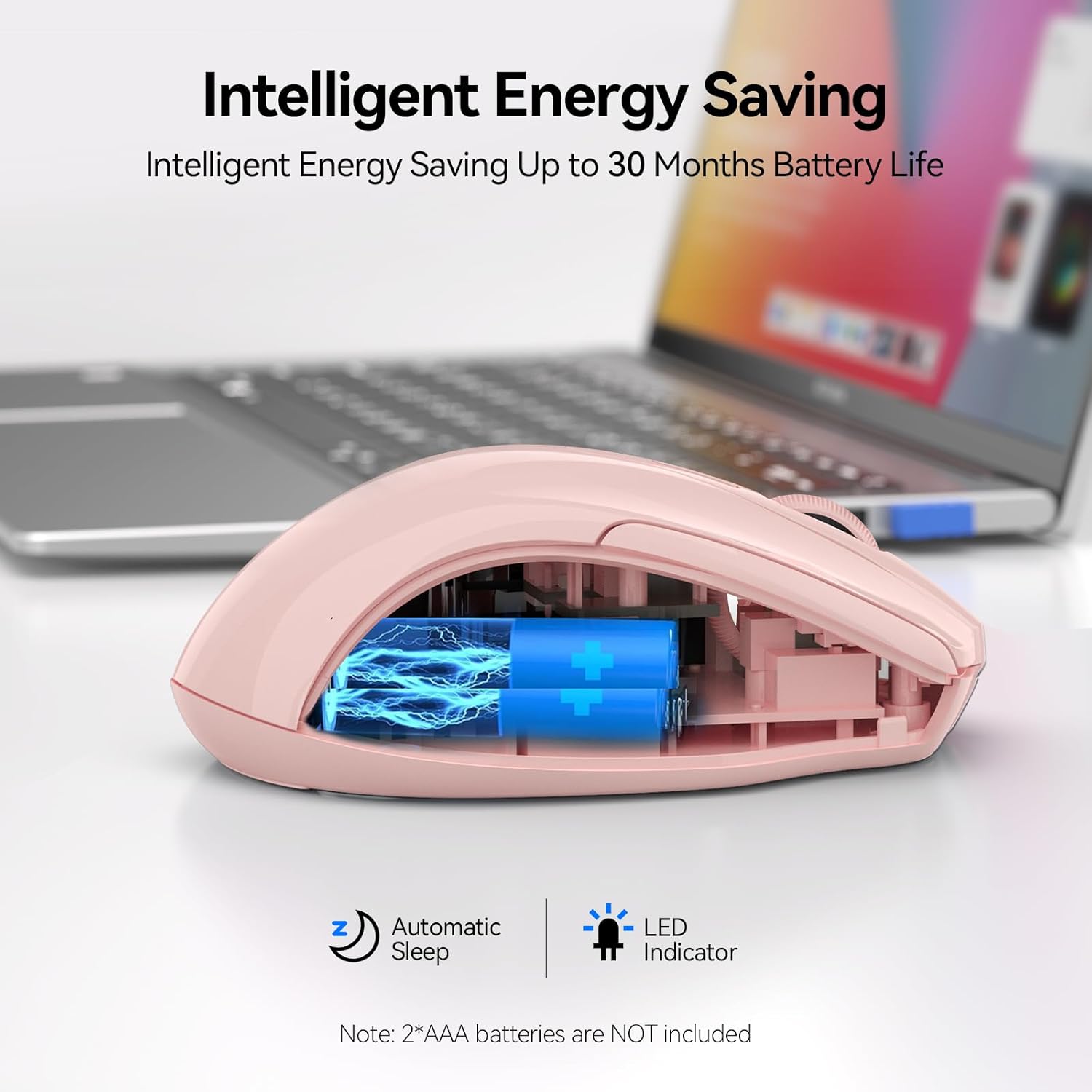
Figure 4: Battery Compartment (2 AAA batteries required)
2. Lidhja e miut
The TECKNET Wireless Mouse offers two connection methods: 2.4G USB A and Bluetooth.
2.1. 2.4G USB A Connection
- Locate the USB A receiver stored in the battery compartment of the mouse.
- Remove the USB A receiver.
- Plug the USB A receiver into an available USB port on your computer.
- Slide the power switch on the bottom of the mouse to the "2.4G" position.
- Mausi duhet të lidhet automatikisht.
Figure 5: 2.4G USB A Connection
2.2. Lidhja Bluetooth
- Slide the power switch on the bottom of the mouse to the "BT" position.
- Press and hold the Bluetooth pairing button (usually a small button near the power switch) until the LED indicator light starts blinking (blue).
- Në kompjuterin ose pajisjen tuaj, hapni cilësimet e Bluetooth.
- Kërko për new devices and select "TECKNET Mouse" (or similar) from the list.
- Ndiqni çdo kërkesë në ekran për të përfunduar procesin e çiftimit.

Figura 6: Lidhja Bluetooth
Video 1: Demonstration and setup of the Bluetooth wireless mouse.
Udhëzimet e funksionimit
1. Rregullimi i Ndjeshmërisë së DPI-së
The mouse features a DPI switch button, typically located near the scroll wheel. Press this button to cycle through 6 adjustable DPI settings (800/1200/1600/2400/3200/4800) to match your preference for cursor speed and precision.
Figure 7: DPI Switch Button for Sensitivity Adjustment
2. Funksioni i klikimit të heshtur
This mouse is designed with silent click buttons, providing a quiet user experience. This is particularly beneficial in environments where noise reduction is desired, such as libraries or shared offices.

Figure 8: Silent Click Operation
Video 2: Riview highlighting the silent click feature and ease of pairing.
3. Power Saving Modes
The mouse incorporates automatic sleep technology to conserve battery life. After a period of inactivity, the mouse will enter a sleep mode. To reactivate, simply click any button.

Figure 9: Automatic Sleep Technology for Power Saving
Mirëmbajtja
- Pastrimi: Përdorni një leckë të butë dhe të thatë për të pastruar mausin. Shmangni kimikatet e ashpra ose materialet gërryese.
- Ndërrimi i baterisë: Replace batteries when the low battery indicator lights up or when performance degrades. Refer to the "Battery Installation" section for instructions.
- Magazinimi: When not in use for extended periods, turn off the mouse to further conserve battery life.
Zgjidhja e problemeve
1. Miu nuk përgjigjet
- Kontrolloni nëse miu është i ndezur.
- Sigurohuni që bateritë të jenë instaluar siç duhet dhe të mos jenë shkarkuar. Zëvendësojini nëse është e nevojshme.
- For 2.4G connection, ensure the USB A receiver is securely plugged into a working USB port.
- For Bluetooth connection, verify that Bluetooth is enabled on your device and the mouse is paired. Try re-pairing if connection is lost.
- Provo ta lidhësh mausin me një port tjetër USB ose me një pajisje tjetër për të përjashtuar problemet me portin ose pajisjen.
2. Cursor Movement is Erratic or Slow
- Pastroni sensorin optik në pjesën e poshtme të mausit.
- Ensure you are using the mouse on a suitable surface. Optical mice perform best on non-reflective, uniform surfaces.
- Adjust the DPI sensitivity using the DPI switch button on the mouse.
3. Side Buttons Not Working on macOS
- As noted in the product features, side buttons are not compatible with macOS. This is expected behavior.
Specifikimet
| Veçori | Detaj |
|---|---|
| Model | BM307 (Internal Model) / B0DP2DCC6N (ASIN) |
| Teknologjia e lidhjes | Bluetooth (5.0/3.0), 2.4G Wireless (USB A) |
| Nivelet e DPI | 800, 1200, 1600, 2400, 3200, 4800 |
| Teknologjia e zbulimit të lëvizjes | Optike |
| Karakteristika të veçanta | Ergonomic Design, Silent Click, Automatic Sleep |
| Burimi i energjisë | 2 x bateri AAA (nuk përfshihen) |
| Pesha e artikullit | 3.52 ons |
| Dimensionet e paketës | 4.49 x 3.23 x 1.73 inç |
| Përputhshmëria | Windows, macOS (side buttons not compatible), Chrome, Linux |
Garancia dhe Mbështetja
TECKNET ofron një 36 muaj garanci for registered products. If you encounter any problems using the product, please contact our professional customer service team for assistance.
Informacioni i kontaktit: Refer to the product packaging or the official TECKNET webfaqja për detajet më të azhurnuara të kontaktit të mbështetjes.


